

Starting your academic journey at the University of the Western Cape (UWC) is an exciting milestone. For both new first-years and returning students, the central hub for managing your studies is the online student portal. Understanding the uwc student portal how to register and login process for 2026 is the first practical step toward a successful academic year.
This guide provides a detailed, step-by-step explanation of how to access the portal, complete your registration, and resolve common issues. The process is designed to be straightforward, allowing you to complete these essential administrative tasks from the comfort of your home. We will cover everything from your initial login to selecting modules and securing financial clearance, ensuring you are fully prepared for the 2026 academic year.
What is the UWC Student Portal?
The UWC Student Portal is an integrated online platform that serves as the digital campus for students . It is a secure, personalized gateway to a wide range of academic and administrative services. Instead of visiting campus for every small task, students can use the portal to manage their university life efficiently.
Key functions available on the uwc portal include:
-
Online Registration: Selecting and enrolling in modules for the semester.
-
Academic Records: Viewing timetables, exam results, and academic history.
-
Financial Services: Checking fee statements, making online payments, and managing financial clearance.
-
Communication: Accessing the official UWC student email (studentnumber@myuwc.ac.za) .
-
Learning Management: Accessing iKamva, UWC’s e-learning platform, for course materials, assignments, and virtual classes .
-
Personal Information: Updating contact details and viewing application statuses.
The primary web address for the portal is https://student.uwc.ac.za .
Why Choose the University of the Western Cape?
Before diving into the registration steps, it is worth understanding the environment you are about to join. The University of the Western Cape holds a distinct and respected place in South African higher education.
UWC is not just an institution of academic learning; it is a community deeply rooted in the principles of social justice, equality, and intellectual freedom. Often referred to as a university of the left, it has a rich history of producing critical thinkers and leaders who contribute meaningfully to society. Students choose UWC for its:
-
Commitment to Excellence: The university offers a wide range of undergraduate and postgraduate programs across seven faculties, designed to meet the demands of a globalized world .
-
Research-Driven Teaching: Students learn from lecturers who are actively involved in research that addresses real-world challenges.
-
Inclusive Community: UWC is known for its diverse and welcoming campus, where students from all backgrounds can thrive.
-
Holistic Student Support: From financial aid offices to academic advising and career guidance, UWC provides robust support systems to help students succeed .
Studying at UWC means becoming part of a legacy of resilience and innovation. The uwc portal student how to register and login process is your gateway to accessing these opportunities.
Prerequisites for Registration
Before you attempt to log in and register, it is crucial to ensure you have met all the preliminary requirements. Attempting to register without completing these steps will result in errors and delays.
1. Confirm Your Admission
For first-year students, registration is only possible after you have received and accepted a firm offer from the university . You can check your application status and accept any offers directly on the portal by clicking the “STUDY OFFER” button and entering your SA ID or Passport number along with your UWC application number . Offers must typically be accepted within three days to secure your place .
2. Obtain Financial Clearance
Financial clearance is a mandatory step. It confirms that your fees for the upcoming year have been arranged. The process varies depending on your funding source :
-
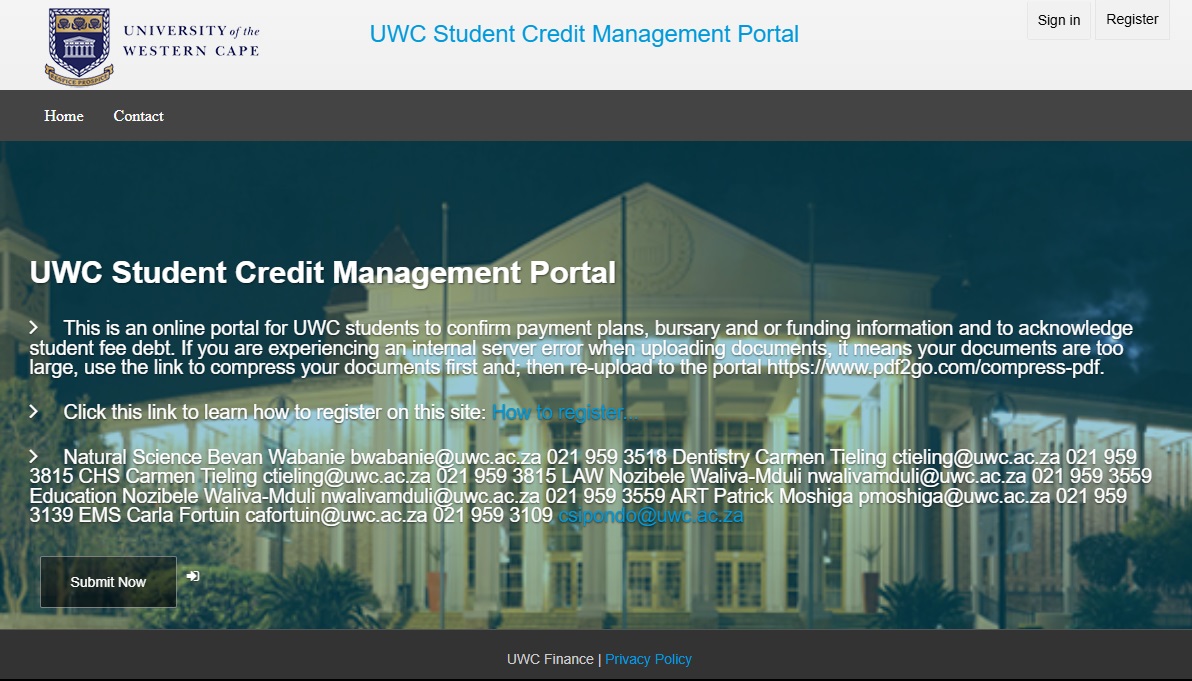
Self-funded Students: You must make an upfront payment before you can register. For 2026, this amount is typically around R4290 for students not in residences and R4840 for those placed in university residences. This payment must be made via EFT or online card payment at least three days before registration to allow it to reflect on the university’s system . Proof of payment must be uploaded to the Student Credit Management portal at https://studentdebt.uwc.ac.za/ .
-
NSFAS Students: Your funding will be facilitated by the Financial Aid Office. They will receive confirmation from NSFAS and provide clearance instructions to Student Credit Management. You will receive an SMS once you are cleared to register .
-
Bursary Students: If you have a bursary, you must send your documentation to finaid@uwc.ac.za for vetting. Once approved, you will be financially cleared .
-
International Students: Non-South African citizens are generally required to pay the full tuition and residence fees upfront at registration .
Step-by-Step: UWC Portal Student How to Register and Login 2026
Once you have met the prerequisites, you are ready to begin the online registration process. Follow these steps carefully.
Step 1: Access the Login Page
Open your web browser and navigate to the official UWC student portal: https://student.uwc.ac.za .
Step 2: Enter Your Login Credentials
The login process differs slightly for new and returning students :
-
Returning Students: Log in using your AD password. This is the password you use for university computers and services. Do not use your ID or passport number.
-
First-Time Entrants (First Years): Your initial login credentials are structured.
-
Username: Your Student Number.
-
Password: Enter !St followed by your full South African ID number. For international students, replace the ID number with your passport number (e.g., !St8901011234088 or !StAB123456) .
-
After entering your details, click “Submit” . If you are a first-time user, you may be prompted to change this temporary password to something more secure immediately upon logging in .
Step 3: Navigate to the Registration Menu
Once logged in, look for the main menu. The exact wording may vary slightly, but you should click on options such as:
-
“Registration”
-
Or “Select modules for registration”
Before proceeding to module selection, take a moment to verify that your personal and contact details displayed on the screen are correct. If there are errors, contact the UWC Contact Centre immediately .
Step 4: Select Your Modules
Module selection is a critical part of the uwc portal student how to register and login process. The system is designed to guide you through this in stages .
-
Failed Modules (if applicable): The system will first prompt you to re-register for any modules you may have failed in the previous academic year.
-
Compulsory Modules: Next, you will select the compulsory modules required for your specific qualification and year of study.
-
Elective Modules: Finally, you can choose your elective modules, if your program allows for them. Be careful to select the correct number of electives and confirm your choices with your faculty if you are unsure .
As you select modules, the system will track your credits. Ensure you do not exceed the maximum credit limit for the academic year (usually 120 credits) .
Step 5: Validate Your Selection
After selecting all your modules, click the “Validate” button . The system will check for any errors, such as timetable clashes or missing prerequisites. Ensure there are no red error messages on the screen. If errors persist, make a note of them and contact your faculty helpdesk for assistance.
Step 6: Review Fees and Accept Terms
Once your module selection is validated, the system will display a summary of your study fees for the year, broken down by module and total tuition . Review this information.
To finalize the registration, you must scroll down and read the University’s Terms and Conditions and the Academic Registration Rules. Click on “I ACCEPT” to proceed . You cannot complete your registration without agreeing to these terms.
Step 7: Submit and Confirm Registration
After accepting the terms, click on “SUBMIT REGISTRATION” . Upon successful submission, you will see a confirmation screen. You should then:
-
Click on “ACCEPT REGISTRATION” to view your proof of registration.
-
Click on “EMAIL PROOF OF REGISTRATION” to send a copy to your personal email address for your records .
You will also receive a confirmation email in your official UWC student email account .
Troubleshooting Login and Registration Issues
Encountering a problem can be frustrating, but most issues have simple solutions.
Forgotten Password
If you cannot remember your password, use the self-service option on the login page. Click the “Forgot/Change Password” link and follow the prompts to reset it . You will likely need your student number and ID or passport number to verify your identity.
“Not Financially Cleared” Error
This is one of the most common blocks to registration. If you see this message, it means your financial status has not been updated.
-
If you have paid, ensure you made the payment at least three days ago and uploaded the proof to the Student Credit Management portal. Processing times can take 2-3 business days for EFTs .
-
If you are funded by NSFAS or a bursary, confirm with the Financial Aid Office (finaid@uwc.ac.za) that all your documents are in order and that they have sent clearance to Student Credit Management .
Technical Difficulties
If the portal is slow, not loading, or you encounter system errors, try the following:
-
Clear your browser’s cache and cookies.
-
Use a different browser (like Chrome or Firefox).
-
Try accessing the site during off-peak hours (early morning or late evening) to avoid server congestion .
If problems persist, contact the UWC IT Helpdesk for technical support .
What to Do After Successful Registration
Completing the uwc portal student how to register and login process unlocks the next steps in your university journey.
Activate and Access Your Student Email
Your UWC student email is the university’s official channel of communication . To activate it:
-
Go to Gmail.
-
Enter your full email address: studentnumber@myuwc.ac.za.
-
Use the same initial password you used for the portal (!St followed by your ID/Passport number) .
Access iKamva (Online Learning)
iKamva is UWC’s online learning platform. You can access it through the portal. Here you will find your course materials, lecture notes, and discussion forums, and you will submit assignments online. It is a good practice to log in a week before your modules start to familiarize yourself with the layout and download any introductory materials .
Collect Your Student Card
You will need to collect your official UWC student card. Details on when and where to collect it are usually communicated via your student email or the portal .
Attend Orientation
For first-year students, orientation is vital. It helps you transition into university life, find your way around campus, and understand the support services available to you . Keep an eye on your email for the orientation schedule.
The uwc portal student how to register and login process for 2026 is a systematic and manageable task when approached step by step. By ensuring you have your financial clearance in order and following the online prompts carefully, you can secure your place for the upcoming academic year without unnecessary stress.
Remember, the portal is more than just a registration tool; it is your ongoing companion throughout your time at UWC, providing access to email, learning resources, academic records, and key university updates. Register as early as possible to avoid last-minute technical issues and give yourself ample time to prepare for a fulfilling and successful year at the University of the Western Cape.
Read Also
- UWC Late Application
- How to Check Your Application Status at UWC
- University Of The Western Cape UWC Fee Structure
- University of the Western Cape (UWC) List of Courses and Requirements
