For students at the University of Mpumalanga (UMP), the academic journey is increasingly managed through digital platforms. The UMP Student Portal Login is the primary gateway to a suite of online services designed to streamline university life. Rather than visiting multiple administrative offices, students can now handle essential tasks from a laptop or smartphone, whether they are on campus or at home .
The portal ecosystem at UMP generally consists of two main components: the administrative portal (often referred to as the ITS iEnabler) and the learning management system (MyUMP Moodle). Understanding how to navigate these systems is crucial for both prospective students checking their application status and returning students registering for the 2026/2027 academic year . This guide provides a detailed, step-by-step overview of how to access these platforms, what to do if you encounter issues, and how to make the most of the digital resources available to you.
Why Choose the University of Mpumalanga?
Before diving into the technical aspects of the portal, it is worth understanding the environment it supports. The University of Mpumalanga, with its main campuses in Mbombela and Siyabuswa, has established itself as a institution focused on innovation and rural development. Students choose UMP for its intimate class settings, diverse academic programs, and commitment to producing graduates who are ready to contribute to the regional economy.
The university’s investment in digital infrastructure, including the UMP Student Portal Login systems, reflects its modern approach to education. By centralizing administrative tasks and academic resources online, UMP ensures that students can focus more on their studies and less on paperwork. The integration of platforms like Moodle allows for a blended learning environment where students can access lecture notes, submit assignments, and engage with peers digitally .
Understanding the UMP Student Portal Login for 2026/2027
The UMP Student Portal Login is not just a single website; it is an integrated system that facilitates different aspects of the student experience. For the 2026/2027 academic year, students will primarily interact with two key platforms. Knowing which one to use for a specific task is the first step to a smooth university experience.
The ITS iEnabler: Your Administrative Hub
The ITS iEnabler is the system students use for financial and academic administration. If you need to register for courses, view your fee statement, check your academic results, or update your personal contact details, this is where you need to log in . It is a self-service tool that gives students control over their official university records.
MyUMP Moodle: The Learning Management System
MyUMP Moodle is the educational counterpart to the iEnabler. Once you are registered for your courses, your lectures and course materials will live here . This platform hosts:
-
Course Content: Lecture slides, reading lists, and multimedia resources.
-
Assignments and Quizzes: Submission portals for coursework and online assessments.
-
Grades and Feedback: Access to marks for specific assignments and lecturer comments.
-
Communication: Announcements from lecturers and discussion forums for class collaboration .
Step-by-Step Guide to Logging In
Accessing your accounts for the 2026/2027 academic year is a straightforward process, but following the correct steps ensures you avoid common pitfalls. Below is a guide to logging into both the main administrative portal and the Moodle platform.
How to Access the UMP Administrative Portal (iEnabler)
-
Navigate to the Official Website: Open your preferred web browser and go to the official University of Mpumalanga website at www.ump.ac.za .
-
Locate the Portal Link: On the homepage, look for the “Student Portal” link. This is usually found in the main menu, a quick links section, or sometimes in a dropdown menu labeled “Current Students.”
-
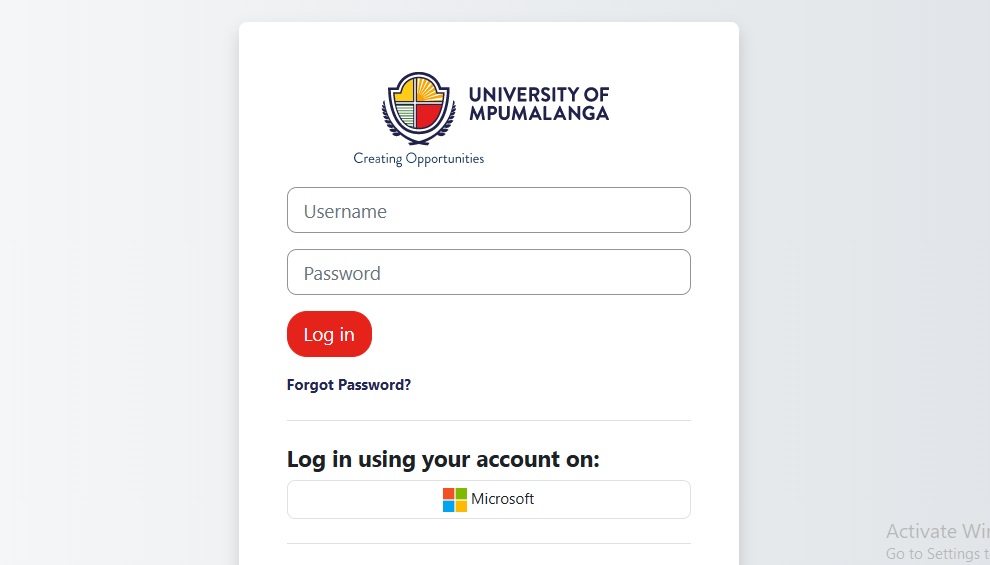
Enter Your Credentials: You will be directed to a login screen. Here, you must enter your unique credentials:
-
Username: This is typically your UMP student number.
-
Password: The password you created during your initial account setup or registration .
-
-
Click Login: After entering your details, click the “Login” button. You should then be redirected to your personal dashboard where you can access services like course registration and fee payments.
How to Access MyUMP Moodle
For academic materials, you will need to log in to the dedicated learning portal.
-
Visit the Direct URL: It is often faster to go directly to the Moodle login page. The official address is https://myump.ump.ac.za/login/index.php .
-
Input Your Details: The login screen will prompt you for your username and password.
-
Username: Your UMP student number or assigned network username.
-
Password: Your UMP network password (this may be the same as your iEnabler password, but it is best to confirm this during your initial setup).
-
-
Access Your Courses: Upon successful login, you will see your dashboard, which lists all the courses you are enrolled in for the 2026/2027 semester .
First-Time Registration and Account Setup
New students for the 2026/2027 academic year will need to activate their accounts before they can log in. The process is designed to verify your identity and secure your access to university systems.
To create your account, you will typically need the following information on hand:
-
Your student number (provided in your admission letter).
-
Your official university email address.
-
A personal identification document for verification.
-
Your admission letter .
Navigate to the main UMP website and look for the “New User Registration” or “First Time Login” link on the student portal page . You will be guided through a process to set up a secure password. It is advisable to choose a strong password that combines letters, numbers, and special characters, and to store it in a secure password manager.
Troubleshooting Common Login Issues
Encountering a barrier at the UMP Student Portal Login screen can be frustrating, but most issues are common and easily resolved.
Forgotten Password Recovery
If you cannot remember your password, do not create a new account. Instead, use the built-in recovery tools.
-
On the login page (for either iEnabler or Moodle), click the “Forgot Password” link .
-
You will be asked to enter your student number or username.
-
Follow the prompts to verify your identity. This is often done by sending a One-Time Pin (OTP) to your registered cellphone number or secondary email address .
-
Once verified, you will be allowed to create a new password.
-
After resetting, return to the login page and access your account with your new credentials .
Browser and Connectivity Problems
Sometimes the issue is not with your account but with your device or connection.
-
Check Caps Lock: Passwords are case-sensitive. Ensure the Caps Lock key is not inadvertently activated .
-
Clear Cache and Cookies: Your browser may be storing outdated information. Clearing your browsing data can often resolve display or login errors .
-
Internet Connection: Verify that you have a stable internet connection. Try loading another website to confirm.
-
Supported Browsers: Ensure your browser is up to date. Using an outdated browser can sometimes cause compatibility issues with the portal software.
If you have tried these steps and still cannot access the portal, it is time to contact technical support. The UMP ICT Help Desk can be reached via email at ict@ump.ac.za or by phone at +27 13 002 0000 .
Maximizing the Features of the Student Portal
Once you have mastered the UMP Student Portal Login, you unlock a range of features designed to support your academic success. Knowing these features allows you to be more independent and organized.
Academic Planning and Registration
The portal is essential for course registration. Before the 2026/2027 semester begins, students should log in to the iEnabler to register for their modules. It is recommended to review your academic plan, check for any prerequisites for senior courses, and consult with your academic advisor if you are unsure about your subject choices . The portal allows you to view your timetable and ensure there are no scheduling conflicts before you finalize your registration.
Financial Management
Gone are the days of standing in line to get a fee statement. Through the portal, students can view their tuition fees, check for any outstanding balances, and see if financial aid has been applied to their account. In some cases, the system may also facilitate online payments, making it easier to manage your student account from anywhere in the world .
Staying Updated with the Academic Calendar
The portal is the central source of truth for important dates. Instead of relying on word of mouth, students can access the official academic calendar. This includes the start and end of lectures, examination periods, and the deadlines for dropping or adding courses . Making it a habit to check the portal weekly ensures you never miss a critical deadline.
The UMP Student Portal Login is more than just a formality; it is your key to a well-organized and successful university experience at the University of Mpumalanga. By familiarizing yourself with both the ITS iEnabler for administrative tasks and MyUMP Moodle for your academic work, you position yourself to take full advantage of the resources UMP offers.
Read Also